
Guide
How to export all your saved Instagram posts
The Saved tab has no export button, but Instagram's Accounts Center will hand you every post and Reel you ever saved as a file. Six taps, then a short wait.
Opens Instagram's Accounts Center. Log in with your Instagram account there, never in Bonchef.
- 1
Open Instagram's export tool
In the Instagram app, go to your profile, open the menu and tap Settings and activity. At the top, open Accounts Center, then Your information and permissions, then Download your information. Instagram sometimes calls it Export your information. You can also open the Accounts Center in a browser.
- 2
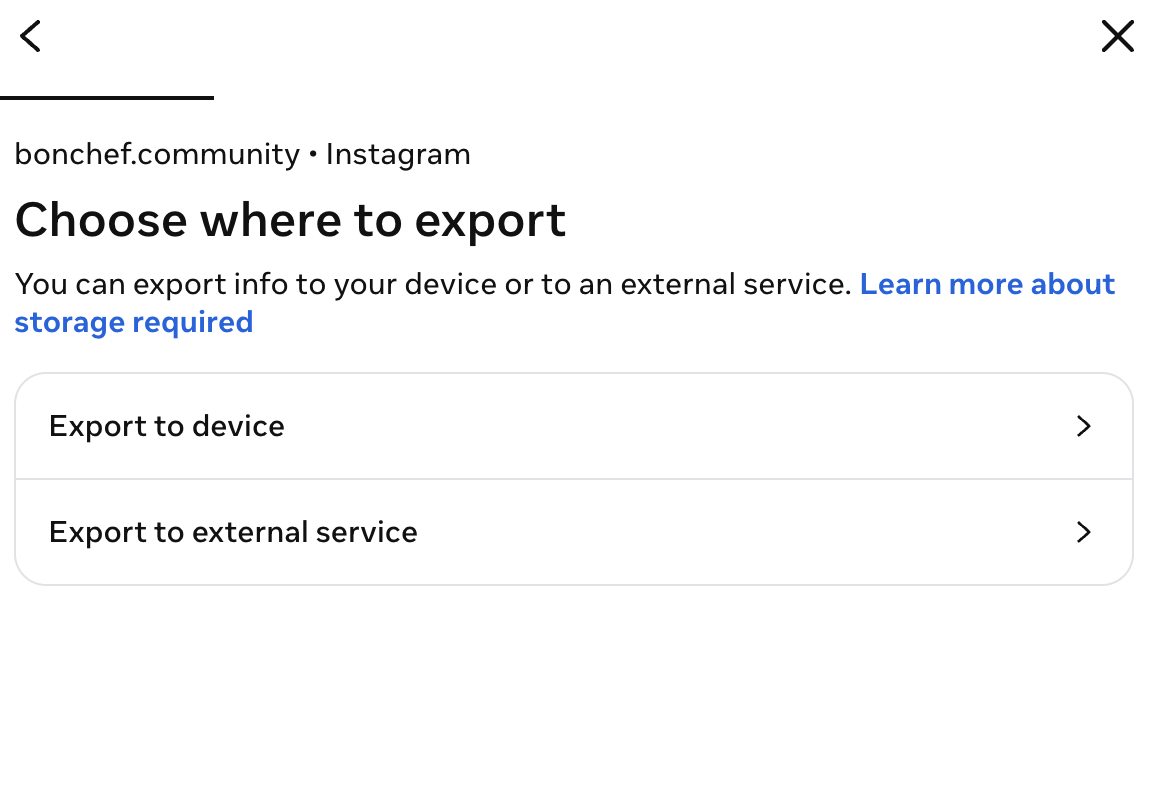
Choose Export to device
Instagram can also send the file to a cloud service. Pick Export to device so the zip lands on your phone, where Bonchef can open it.
- 3
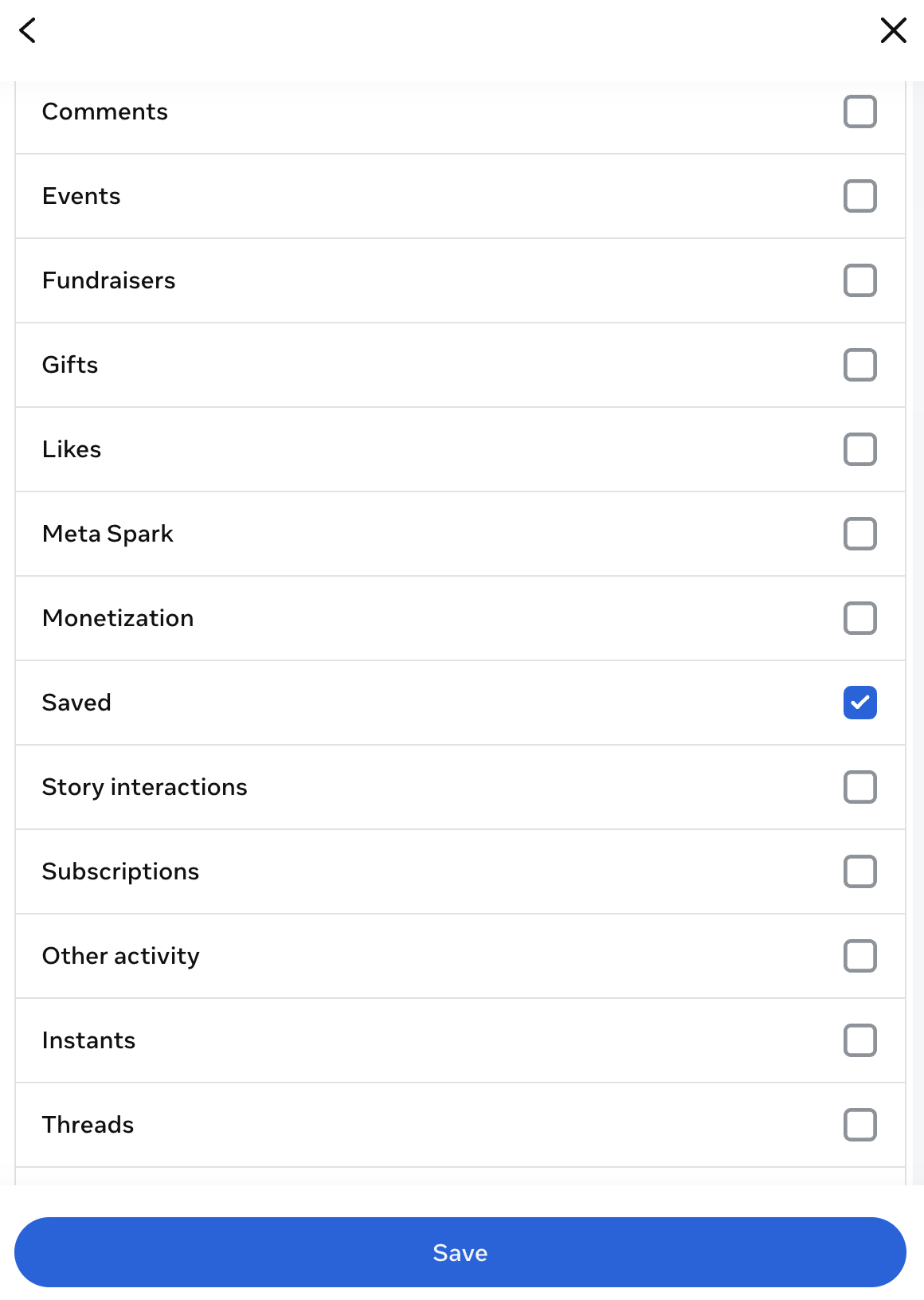
Tick only Saved
Under Customize information you get a long list. Scroll down and tick Saved. Leave everything else unticked so the file stays small and Instagram prepares it faster.
- 4
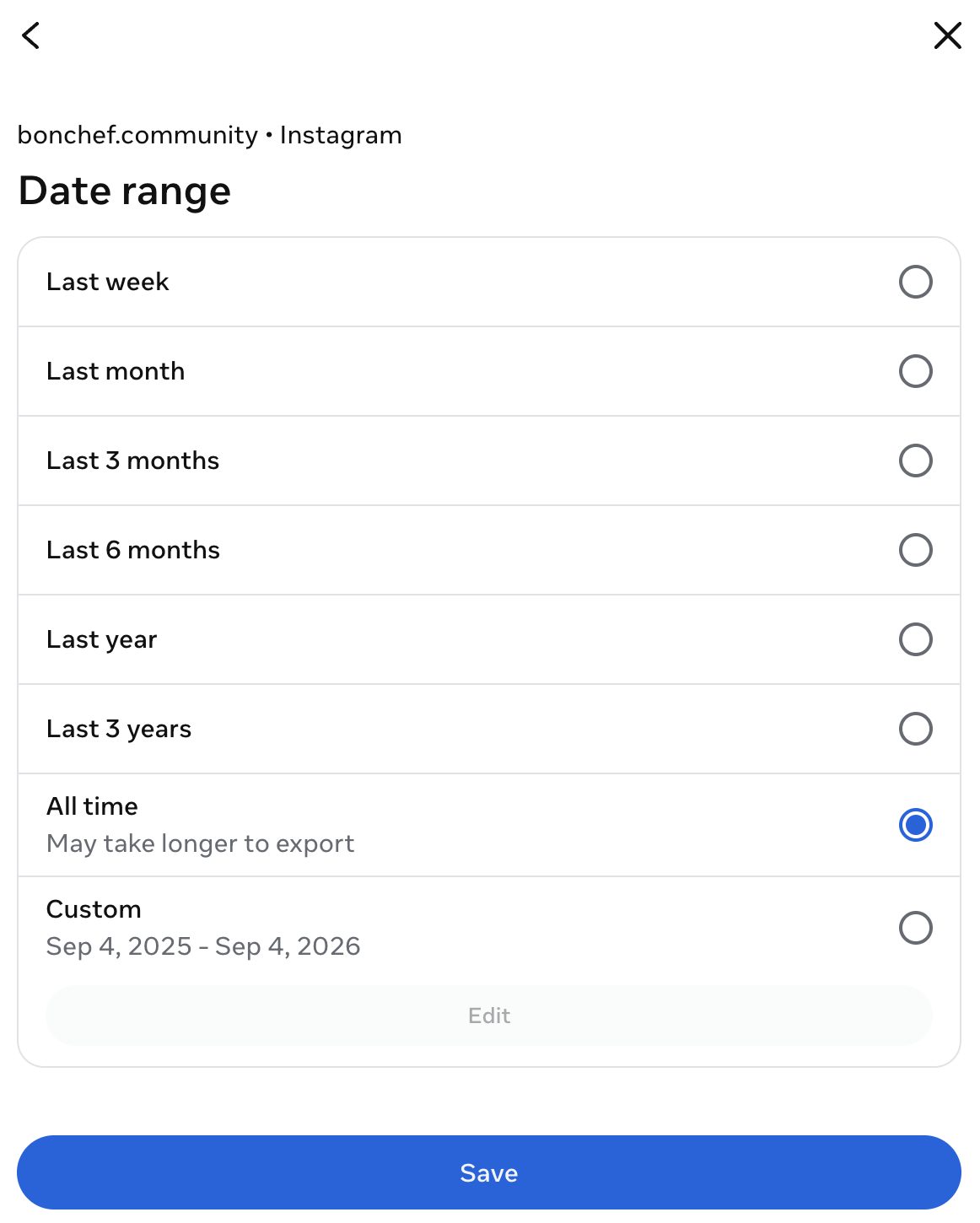
Set the date range to All time
The default only covers recent activity. All time gets every recipe you ever saved, including the ones from years ago.
- 5
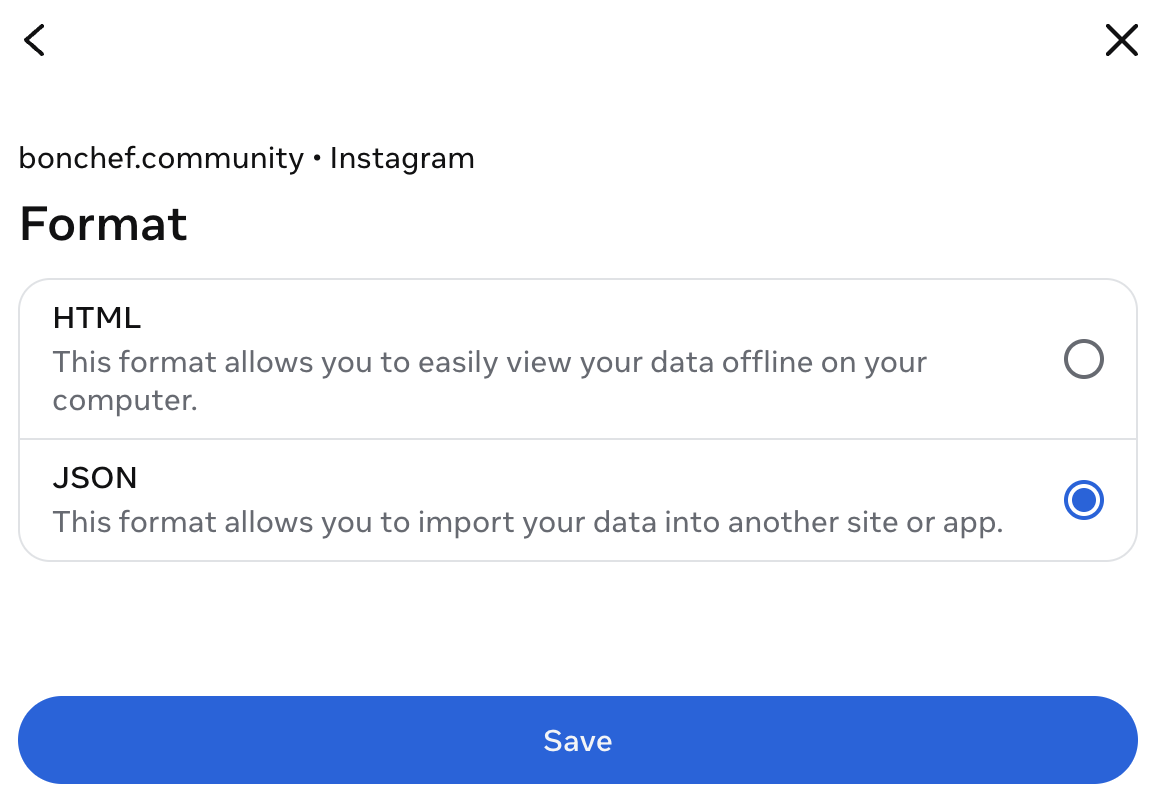
Pick JSON as the format
HTML is for reading the export on a computer. JSON is the version other apps can read, and it's the one Bonchef needs. If you already downloaded HTML, request the export again.
- 6
Create the file and wait for Instagram
Confirm the export. Instagram prepares a zip and sends you a notification when it's ready. For saved posts only that's often quick, but it can take longer. Download the zip to your phone. The download link expires after about four days, so don't wait too long.
Got the zip?
Now turn those saves into recipes.
Open the zip in Bonchef and every saved recipe post becomes a real recipe with ingredients and steps, sorted into your collections. All of them in one go.
Exporting saved posts FAQ
Why JSON and not HTML?
The HTML export is a web page meant for reading. The JSON export is structured data, which is what apps can read. Both contain the same saved posts, so pick JSON if you want to do anything with them.
How long does Instagram take?
It varies. A request for saved posts only is small and often ready within the hour, but Instagram can take up to a few days. You get a notification and an email when it's ready.
What's inside the zip?
A file with a link to every post you saved, grouped into the collections you made on Instagram. The photos and videos themselves aren't included, just the links to them. That's enough for Bonchef to turn them into recipes.
Can I export just one collection?
No. Instagram exports all your saved posts together. Bonchef shows your collections after it reads the file, so you can pick the ones you want to import there.
Where does the zip end up on my phone?
On iPhone it lands in the Files app, usually under Downloads. Bonchef opens it from there when you start a bulk import.
Does exporting change anything on Instagram?
No. The export is a copy. Your saved posts and collections stay exactly where they are.
Your saves, finally cooked.
Export your saved posts from Instagram, open the zip in Bonchef, and cook from a real cookbook instead of a scroll.
Available on iPhone and iPad. Bulk import is paid, and you see the price before anything is imported.